Kritvia for importer
Traders and manufacturers importing goods into India
Each import consignment gets one file with its supplier, arrival date, customs stage and documents, and you see what's arriving and what's still needed every morning.
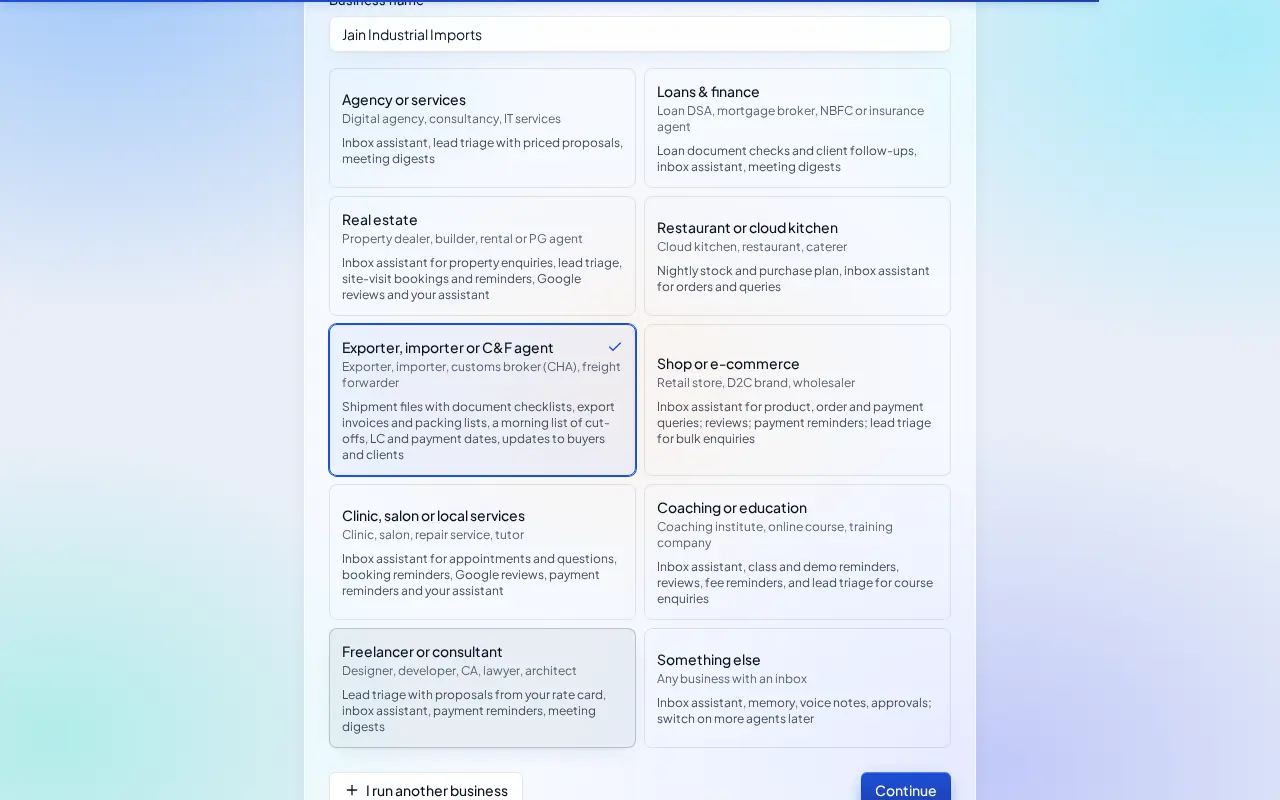
Pick this at sign-up
- Start your free trial at app.sitelytc.com (see Set up your business, step by step for sign-up).
- Type your business name.
- Pick the Exporter, importer or C&F agent card and click Continue.
What switches on
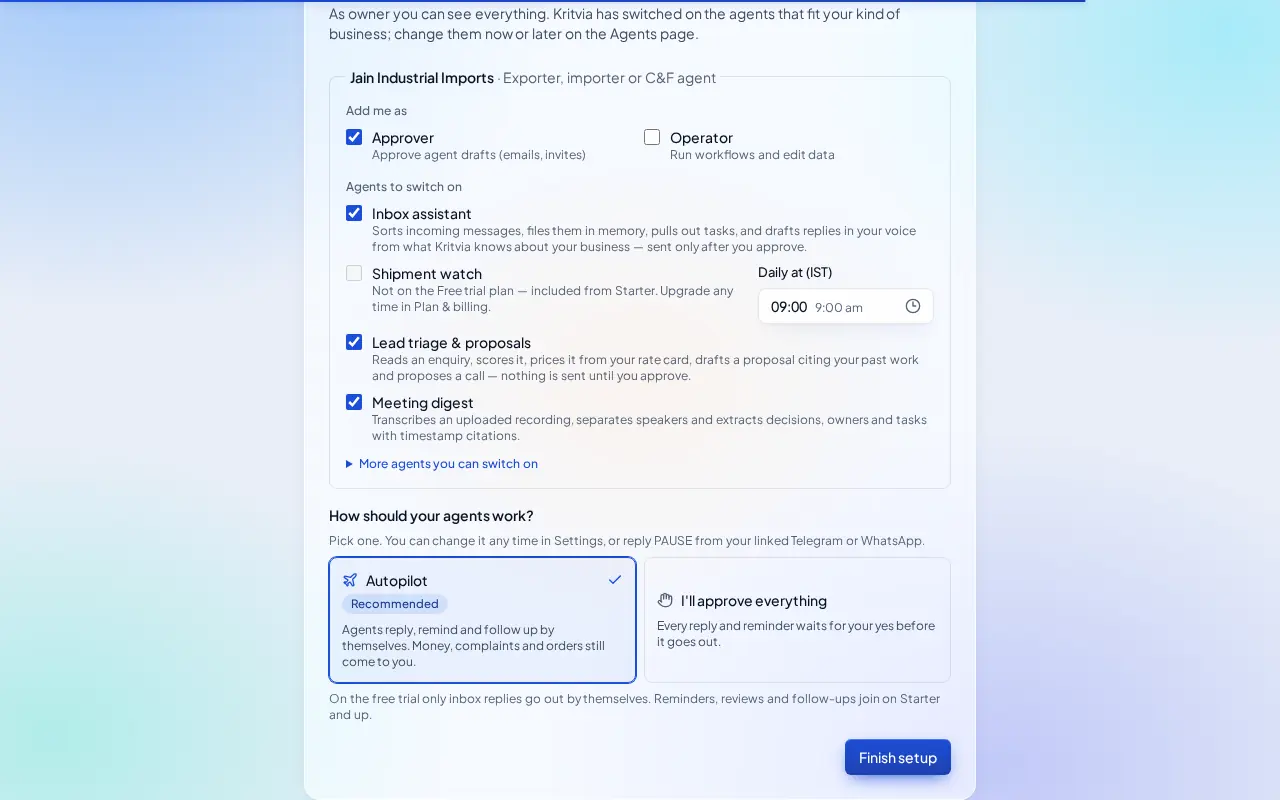
- Inbox assistant: answers suppliers, your CHA and shipping lines; asks for the BL or container number on shipment questions.
- Shipment watch (from Starter): a morning list of arrivals, goods waiting at port and payments due.
- Lead triage & proposals and Meeting digest.
Then choose Autopilot (agents reply, remind and follow up by themselves; money, complaints and orders still come to you) or I'll approve everything, and click Finish setup.
Set up
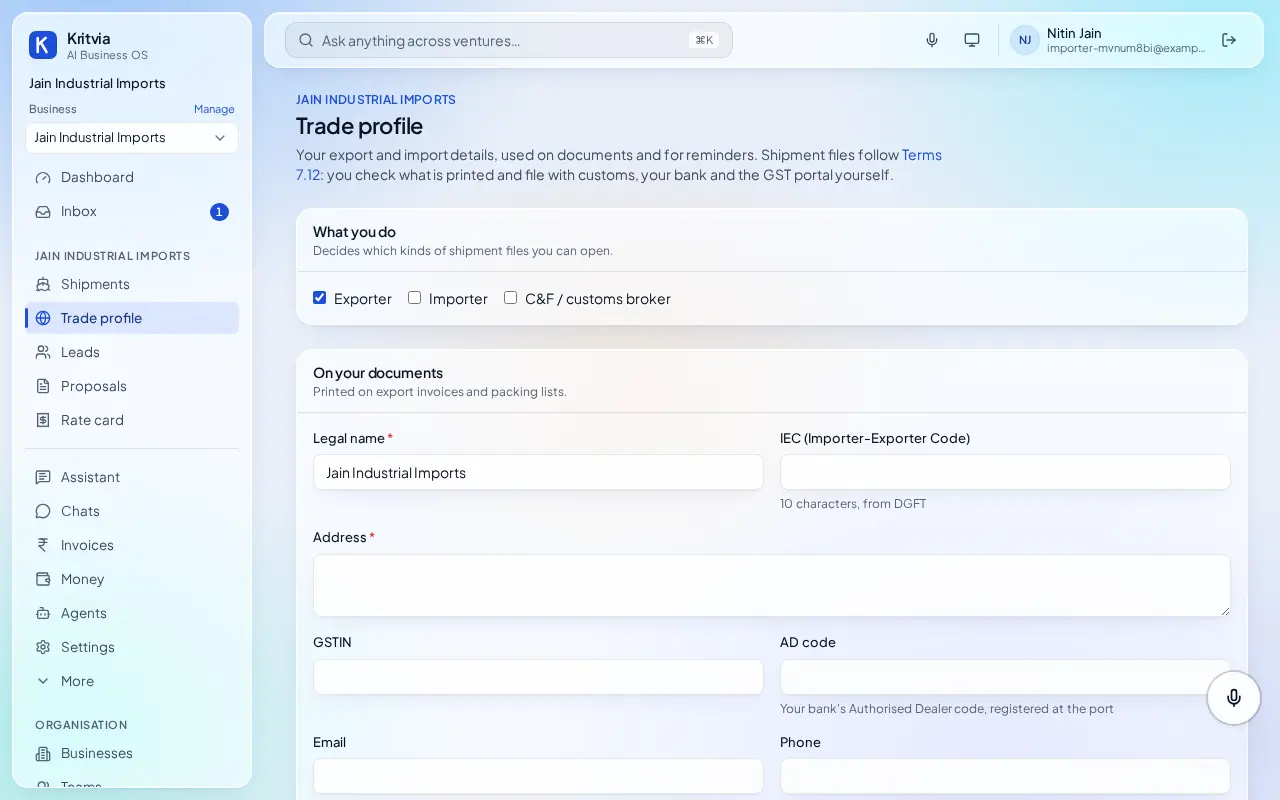
- Trade profile: your IEC, address and bank details.
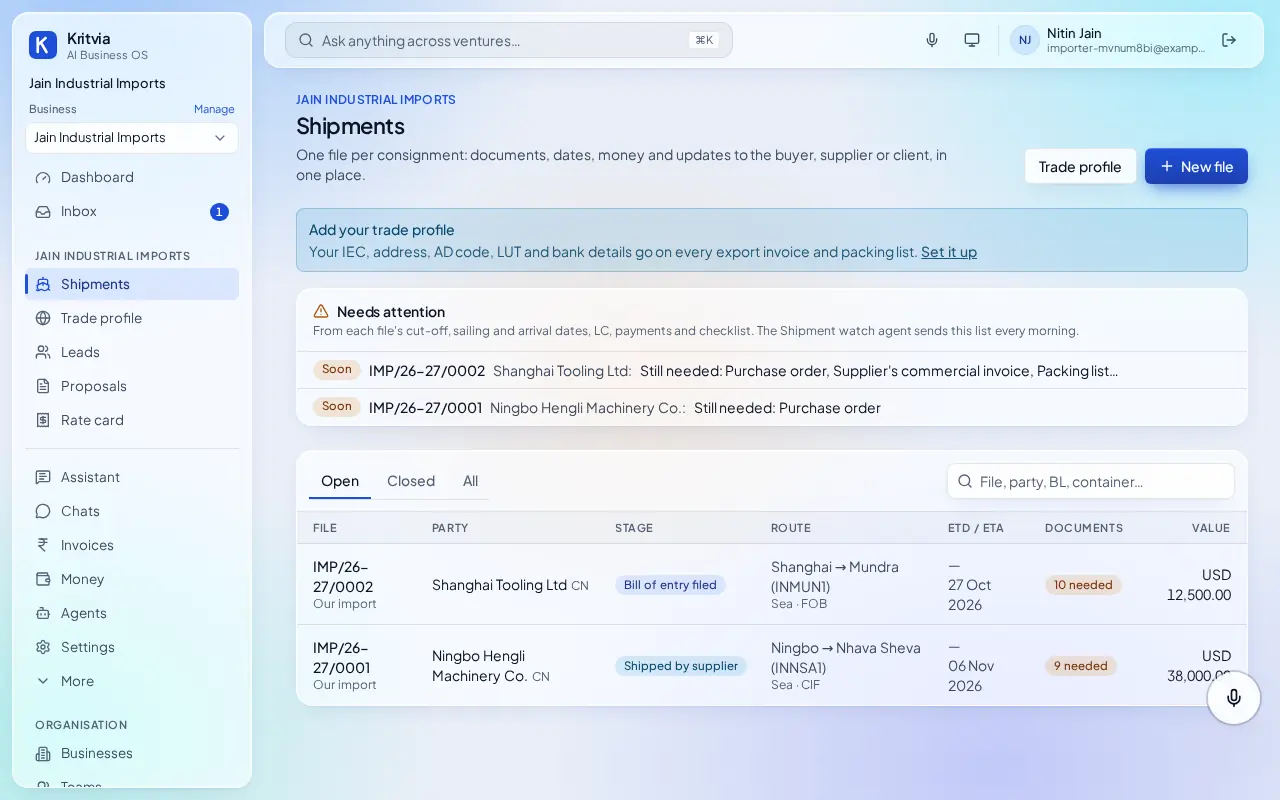
- Shipments → New file, direction Import: the supplier and country, ports, mode, Incoterm, value and currency, payment terms and the ETA.
- As the consignment moves, update the stage (shipped, arrived, customs, duty paid, delivered) and add the bill of entry number and duty.
- Set up your phone and invite your team as in the general guide.
Every day
- Shipments shows each file's stage, ETA and documents needed.
- Updates to your supplier or CHA are drafted for your yes.
Which plan you need
Shipment files on every plan; the morning shipment watch and WhatsApp from Starter.