Set up your business, step by step
From sign-up to your first approved draft, WhatsApp, prices, your phone and your team, in about 15 minutes.
Setting up takes about 15 minutes, and Kritvia sends nothing to a customer until you say so. The screenshots follow a made-up agency, Mehta Digital Studio, owned by Arjun Mehta; every name and email in them is an example.
Before you start
Open app.sitelytc.com on a laptop or phone and keep these ready:
- Your work email (or a Google account) to sign in with.
- Your phone with the WhatsApp Business app, if customers message your business on WhatsApp.
- Your prices: a price list as a PDF, Excel or CSV file, a photo of it, or the web page that lists them.
- Your business name as it appears on Google Maps.
Refunds, discounts, prices that aren't on your rate card, complaints, orders, payments, invoices and proposals always wait for your yes. Kritvia never pretends to be a person.
Step 1: Start your free trial
You get 15 days free with no card.
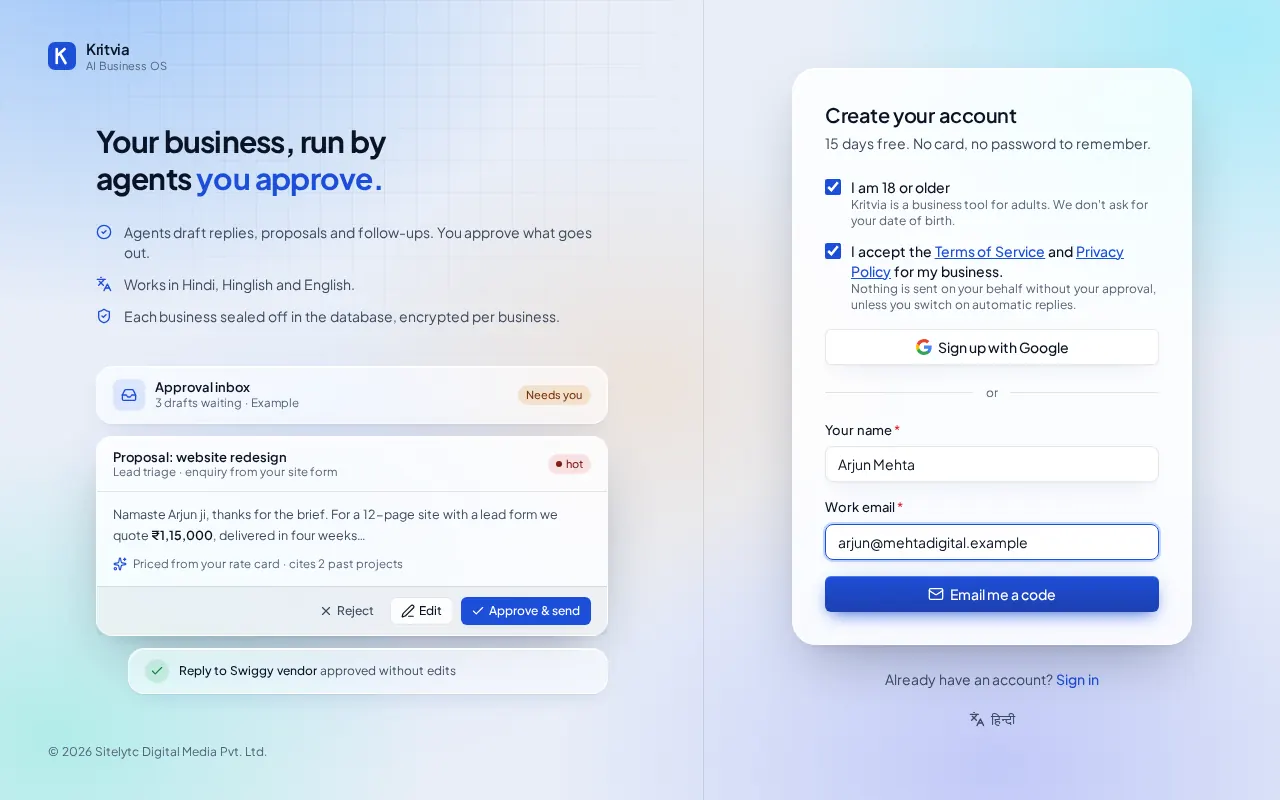
- Open app.sitelytc.com and click Start 15-day free trial.
- Tick both boxes: I am 18 or older and I accept the Terms of Service and Privacy Policy. The sign-up buttons stay off until both are ticked.
- Either click Sign up with Google, or type Your name and Work email and click Email me a code.
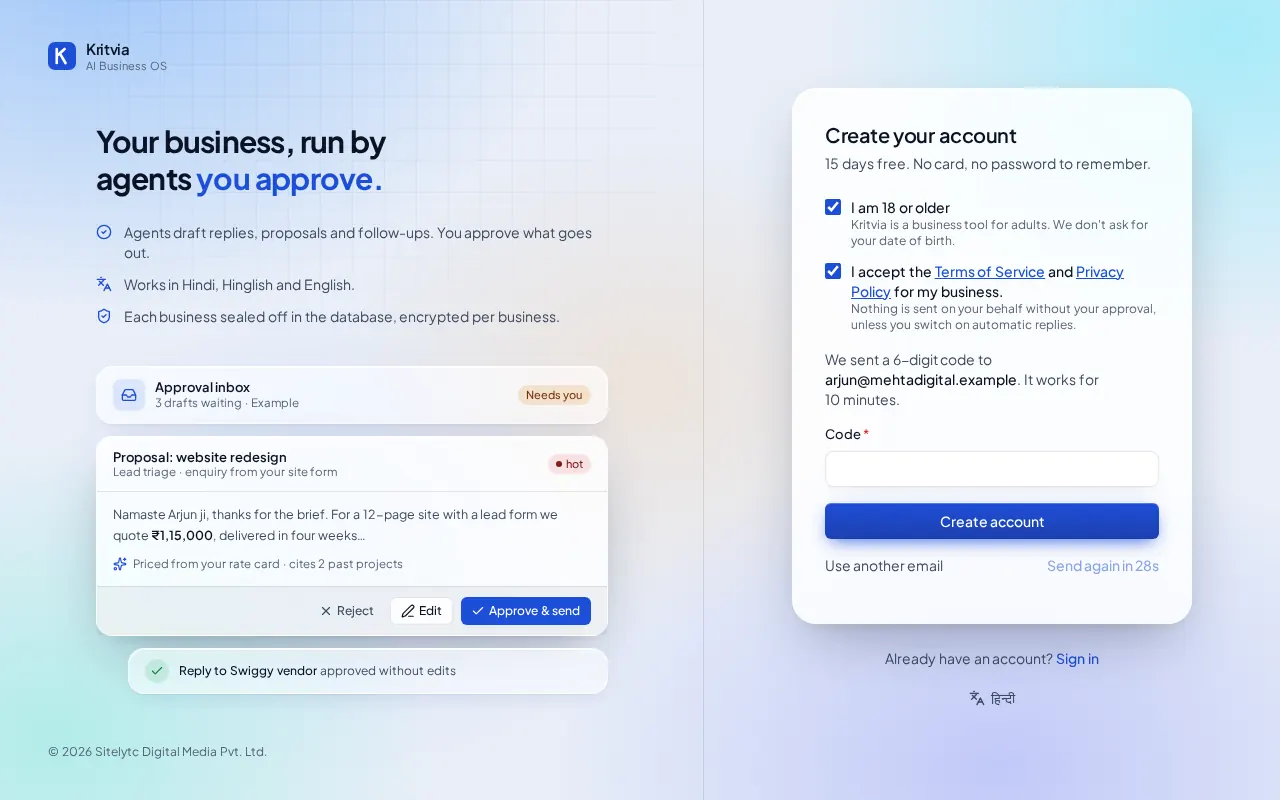
- Type the 6-digit code from the email and click Create account. The code works for 10 minutes. Not there? Check spam, or click Send again when the timer runs out.
To use Kritvia in Hindi, click हिन्दी at the bottom of the page. You can switch back any time.
Step 2: Tell Kritvia about your business
The kind of business you pick decides which agents start switched on.
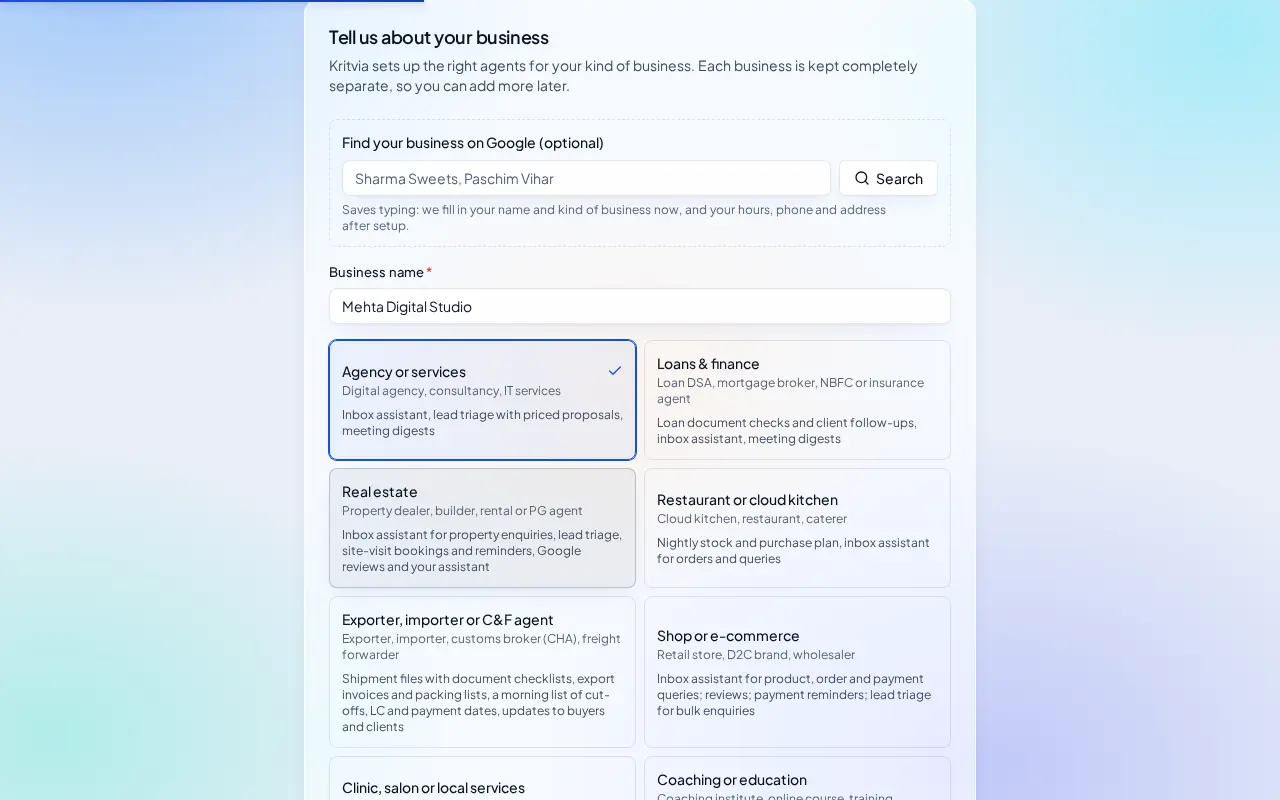
- Find your business on Google (optional): type your business name and area as it appears on Google Maps and click Search. If it says searching isn't available, skip this box.
- Type the Business name.
- Pick the card closest to what you do. An agency, consultancy or IT services firm picks Agency or services: it gets the Inbox assistant, lead triage with priced proposals, and meeting digests. Every kind of business has its own guide under Guides by kind of business.
- Run more than one business? Click I run another business and add it. Each one is kept completely separate.
- Click Continue.
Step 3: Choose your agents and how they work
Kritvia ticks the agents that suit your kind of business; you only need to make one choice.
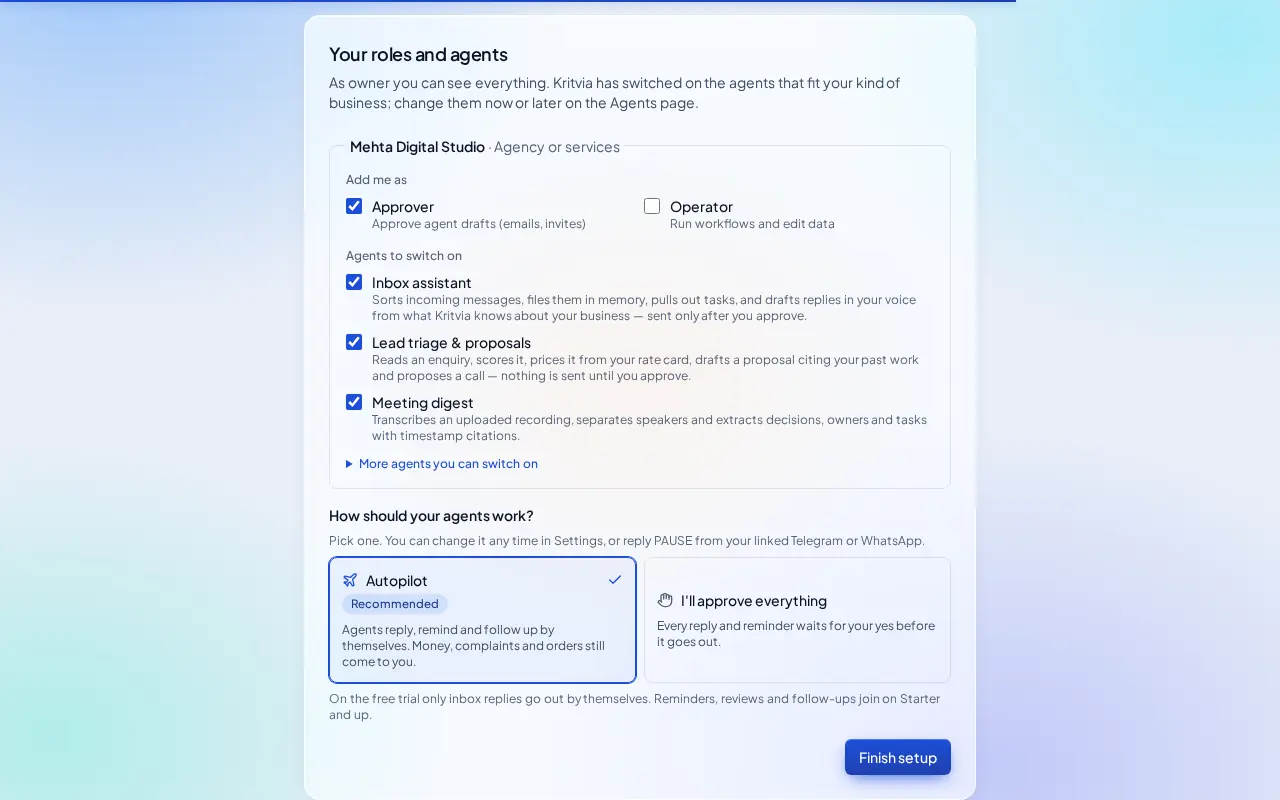
- Under Add me as, keep the roles ticked. As the owner you can see and approve everything.
- Under Agents to switch on, keep the ticked agents or change them. Each line says what the agent does.
- Under How should your agents work?, pick one. Nothing is picked for you:
- Autopilot (recommended): agents reply, remind and follow up by themselves. Money, complaints and orders still come to you, and you get a summary at 8 pm.
- I'll approve everything: every reply and reminder waits for your yes.
- Click Finish setup.
Step 4: Approve your first draft
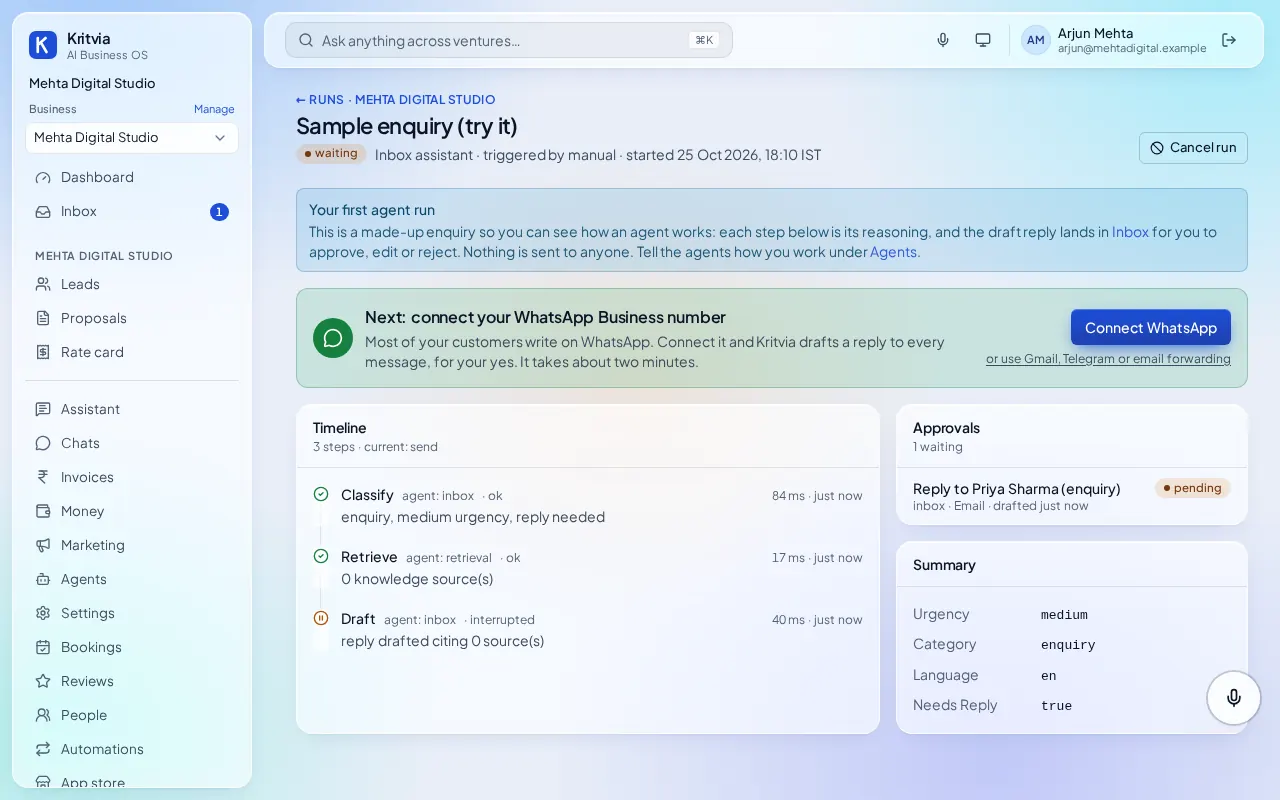
Right after setup, Kritvia runs your Inbox assistant once on a made-up enquiry so you can see how it works. Nothing is sent to anyone.
- The Your first agent run page shows each step the agent took: it sorts the message, looks up what it knows about your business, then drafts a reply.
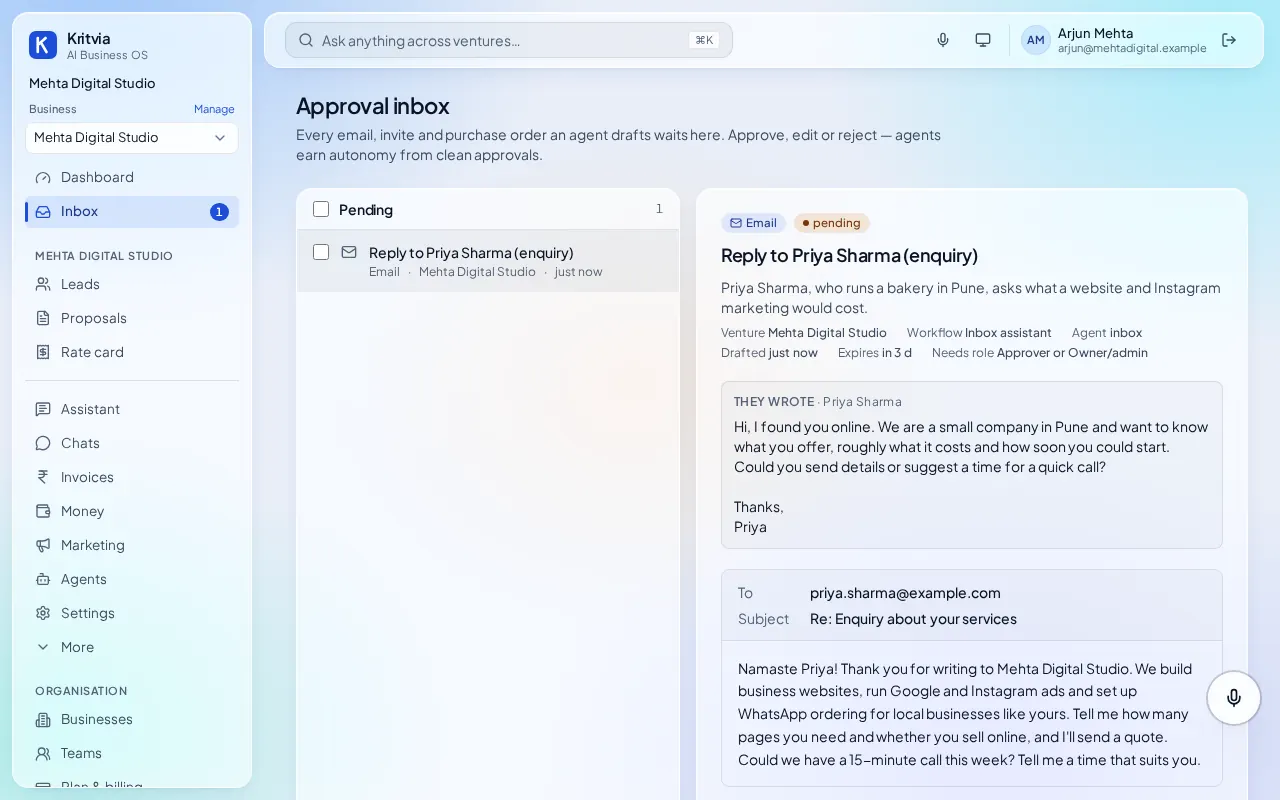
- Click Inbox in the left menu. The draft waits there, with the customer's message above it.
- Read the draft. Click Edit to change any words, then Approve & send. Or click Reject and say what was wrong; the agent redrafts it.
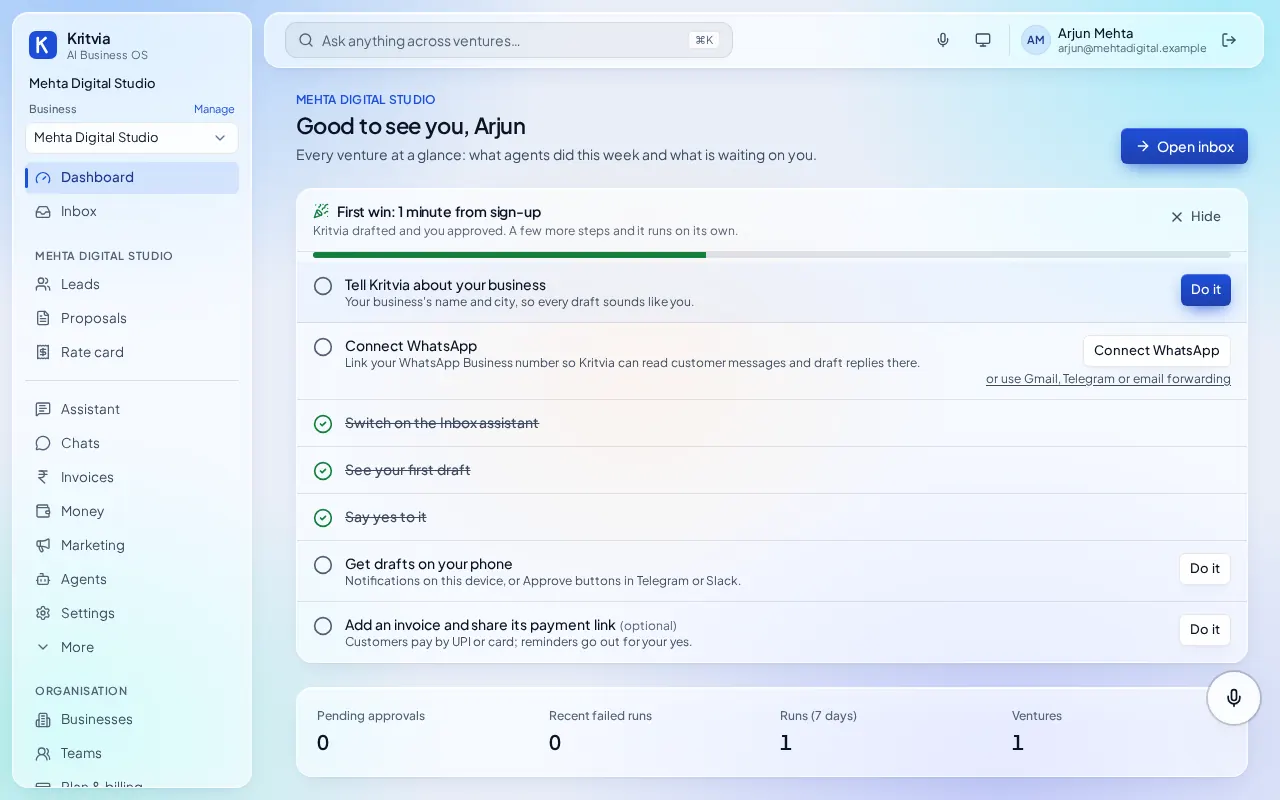
- Click Dashboard. The First win checklist shows what's left, with a button on each line.
Step 5: Connect WhatsApp and email
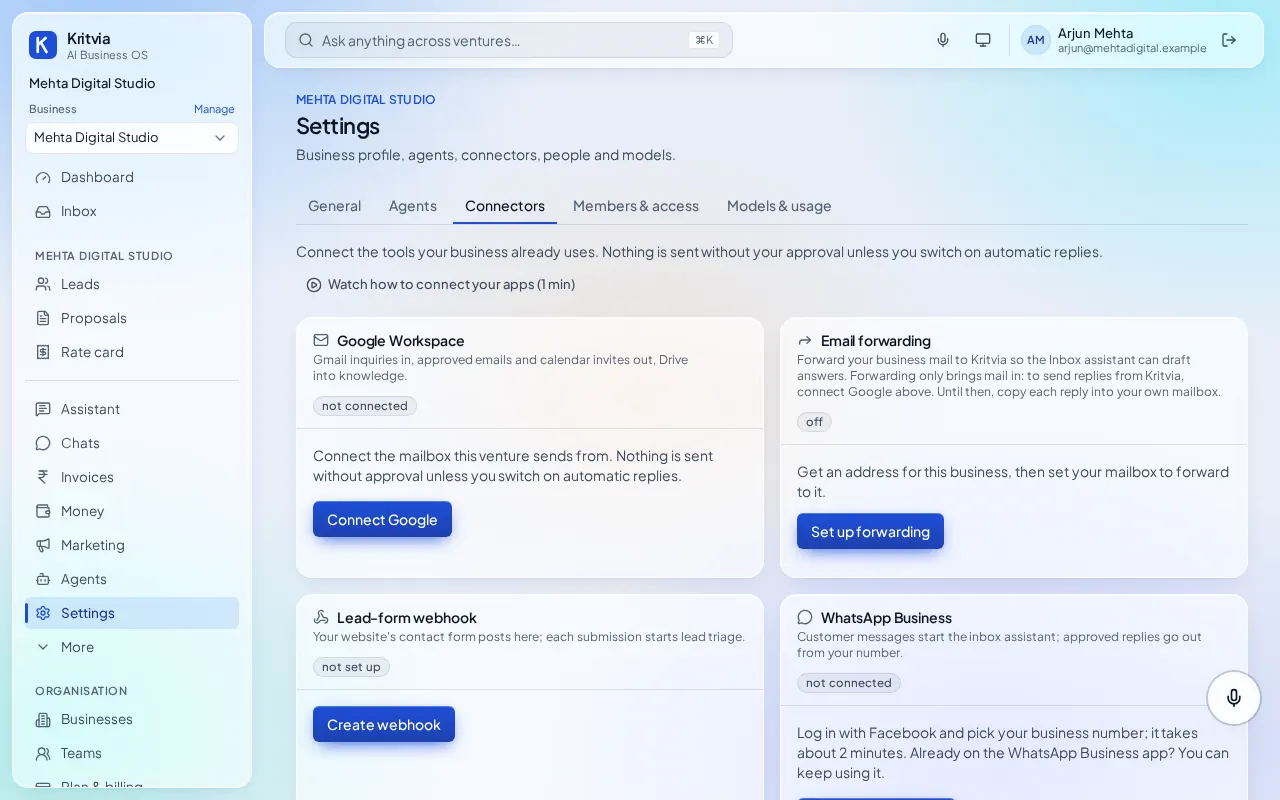
Connect every place customers write to you; all of these are under Settings → Connectors.
- WhatsApp Business: click Connect WhatsApp, choose The number on my WhatsApp Business app (it keeps working on your phone) or A new number, log in with Facebook in the window that opens and pick your business. For the app number, scan the QR code Meta shows with the WhatsApp Business app.
- Gmail: click Connect Google and sign in, so enquiries come in and approved replies go out from your own address.
- Not on Gmail? Click Set up forwarding and forward your business mail to the address Kritvia gives you.
- Your website's contact form: click Create webhook and paste the address into your form's settings. Each submission becomes a lead.
- Optional: Telegram bot (make one with @BotFather), Slack (your team hears when a draft waits) and IndiaMART (every enquiry becomes a lead by itself).
WhatsApp only lets a business reply within 24 hours of the customer's last message, and Kritvia follows that rule.
Step 6: Add your prices
Proposals and replies quote prices only from your rate card; the AI never makes up a price.
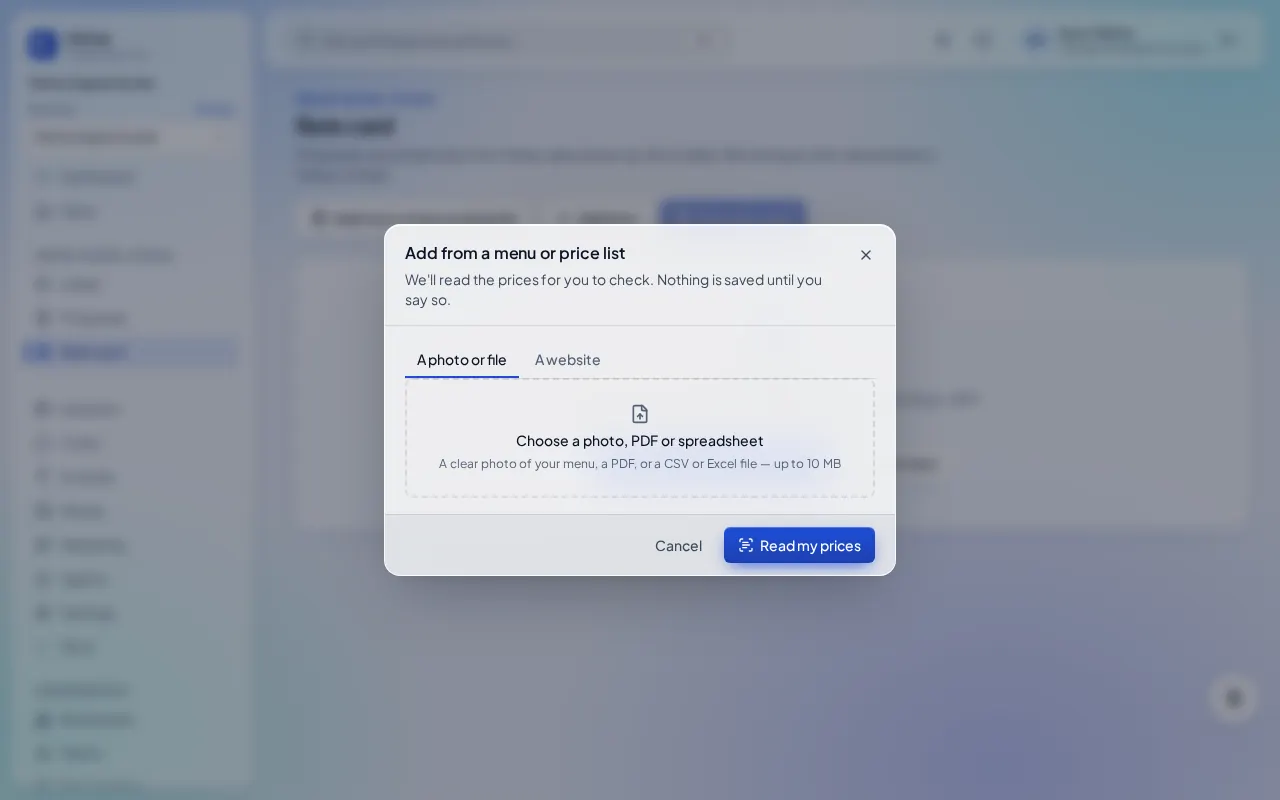
- Click Rate card, then Add from a menu or price list.
- Pick A photo or file (a PDF, an Excel or CSV file, or a clear photo, up to 10 MB) or A website (the page that lists your prices).
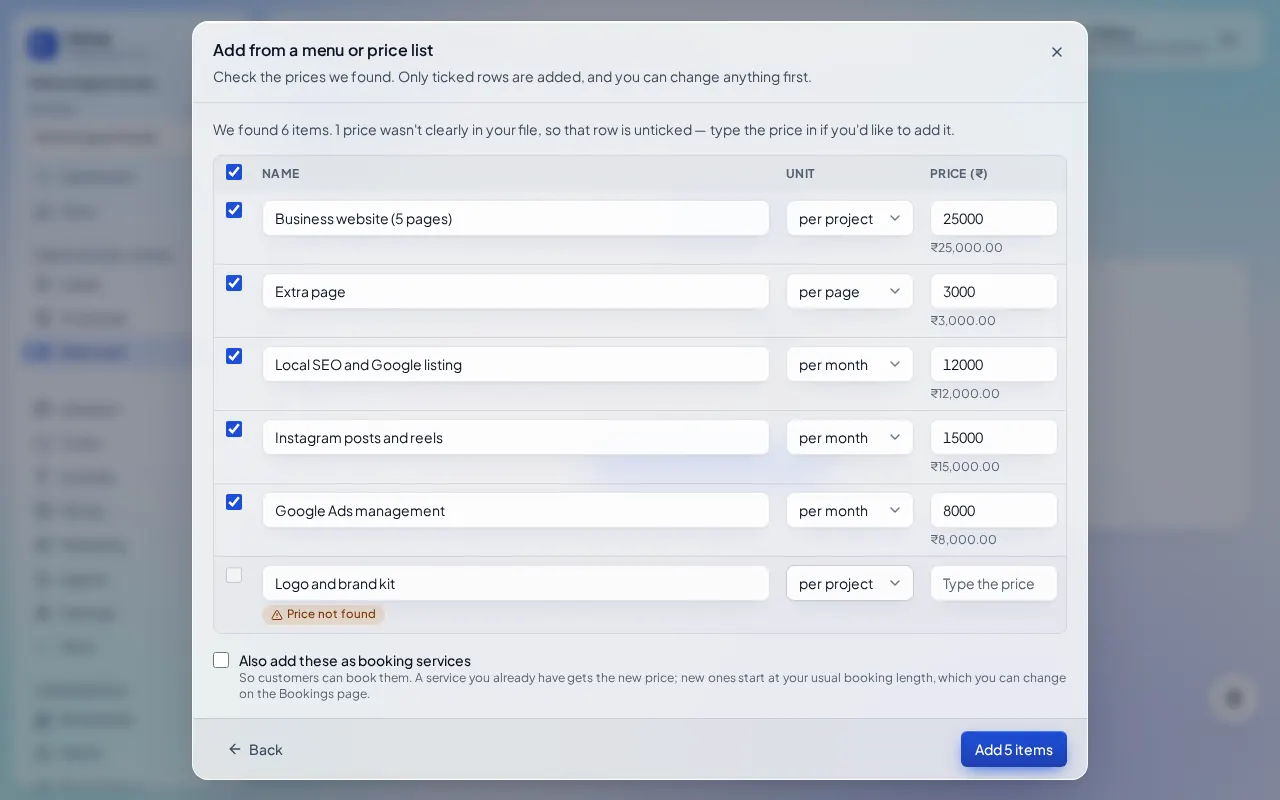
- Click Read my prices. Kritvia lists every item with its price and unit.
- Check the list. A price it couldn't find in your file is marked Price not found and left unticked: type it in, or leave it out.
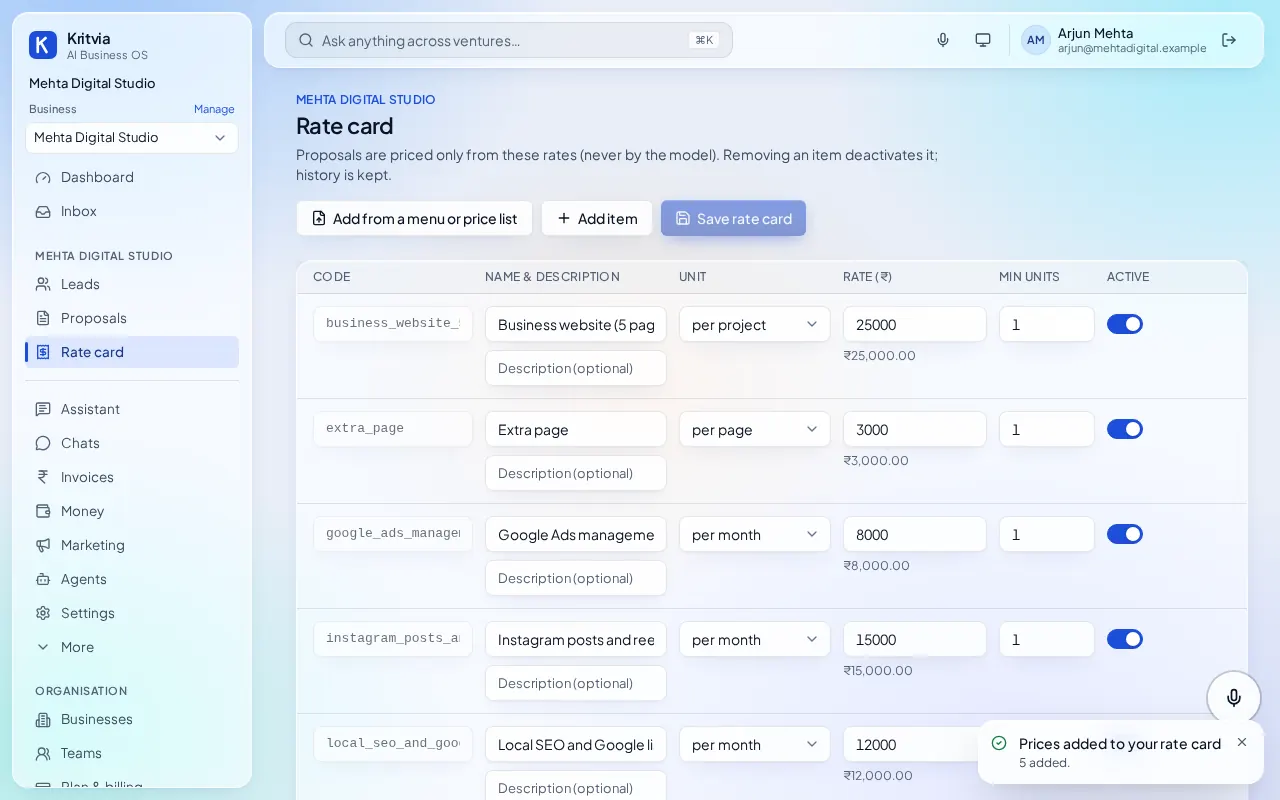
- Click Add N items. If you already have a rate card, Replace my rate card switches off the old items instead; nothing is deleted.
Prefer typing? Click Add item for each service, then Save rate card.
Step 7: Your business profile and getting paid
These make every draft sound like you and let customers pay you.
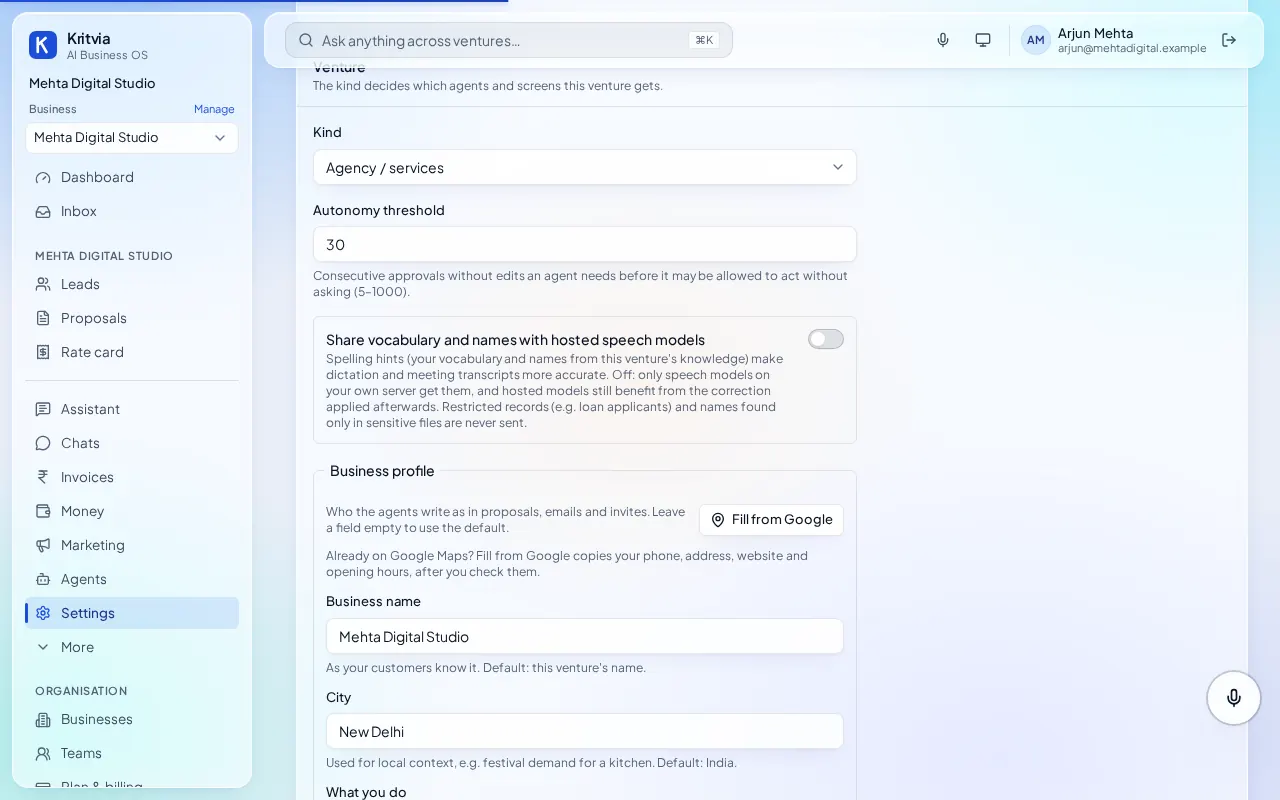
- Business profile (Settings → General): fill in City, What you do in one or two sentences, Email sign-off, Phone, Website and Address. Fill from Google copies these from your Google Maps listing after you check them; if it says Google search isn't set up, type them in.
- Getting paid (Settings → Connectors → Getting paid): enter your UPI ID. Every invoice then gets a payment page customers pay by UPI. Optional: connect your own Razorpay for card and netbanking.
- GST invoices (same page): your legal name, GSTIN and address, printed on every tax invoice.
Step 8: Get drafts on your phone
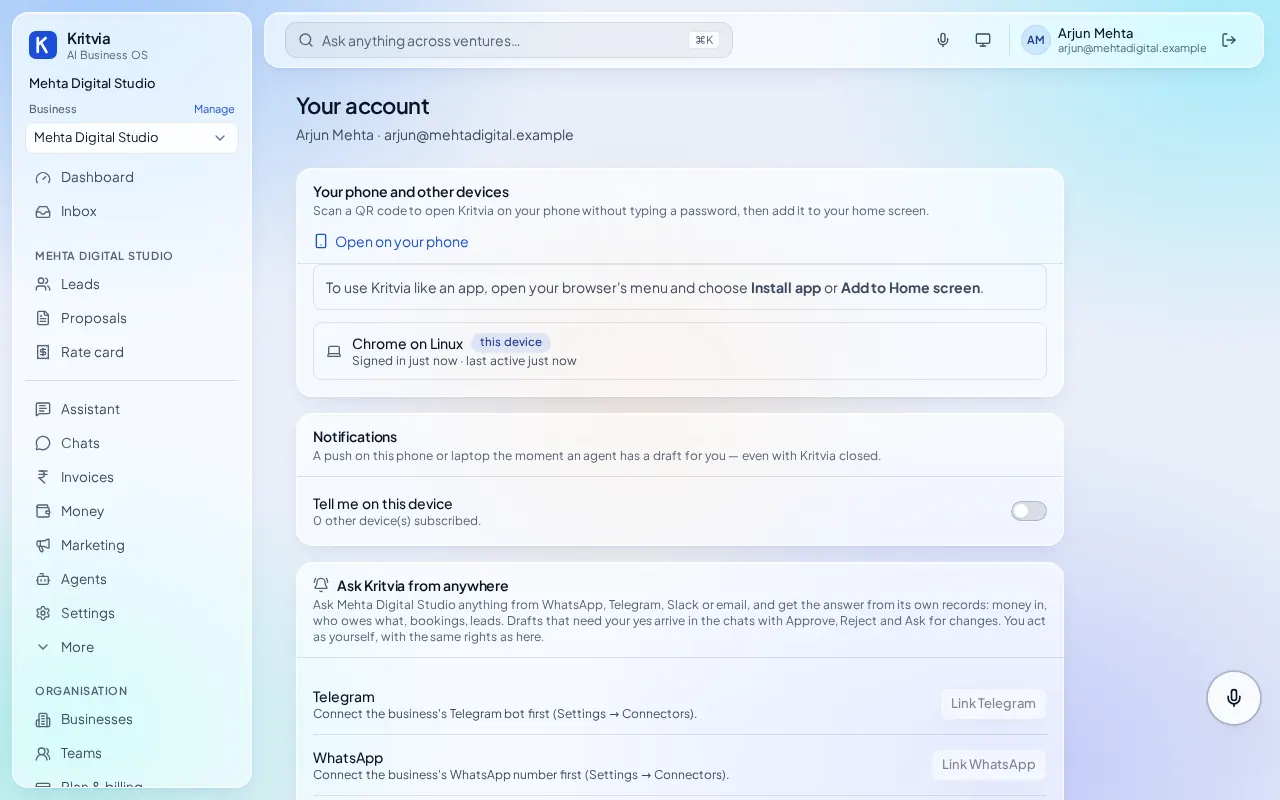
So you can approve from anywhere, set up your phone once under Your account (click your name at the top right).
- Open on your phone: click it and scan the QR code with your phone's camera. Kritvia opens signed in. In your phone's browser menu, choose Add to Home screen to use it like an app.
- Notifications: on your phone, switch on Tell me on this device and allow notifications. You get a buzz whenever a draft needs your yes.
- Ask Kritvia from anywhere: link your own WhatsApp or Telegram (after connecting the business's number or bot). Ask
who owes us money?and get the answer from your records; drafts arrive there with Approve and Reject buttons.
Step 9: Invite your team
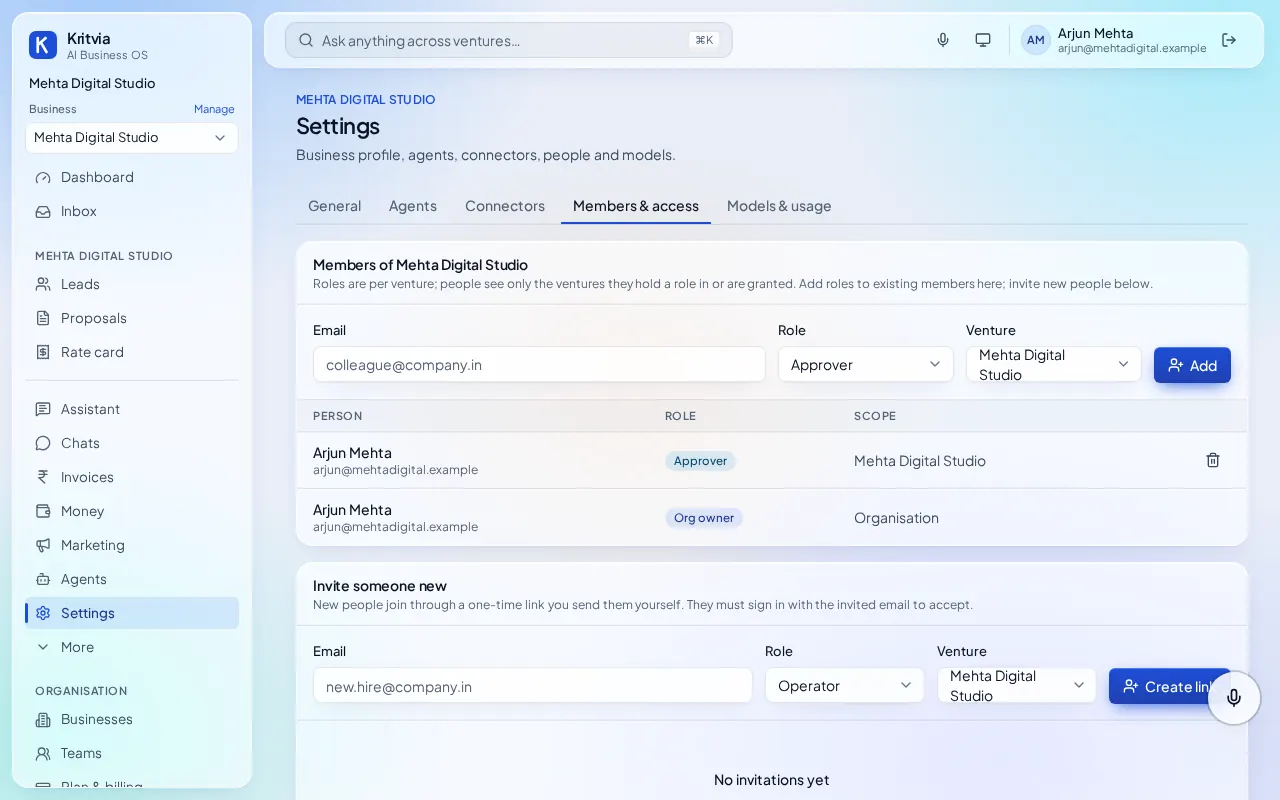
- Go to Settings → Members & access → Invite someone new.
- Type their email, pick a role and the business, and click Create link.
- Send them the link yourself. They sign in with that email to join.
| Role | What they can do |
|---|---|
| Owner/admin | Everything, including settings and members |
| Approver | Approve, edit or reject drafts |
| Operator | Run agents and edit records |
| Viewer | See, but not change |
Step 10: Pick a plan
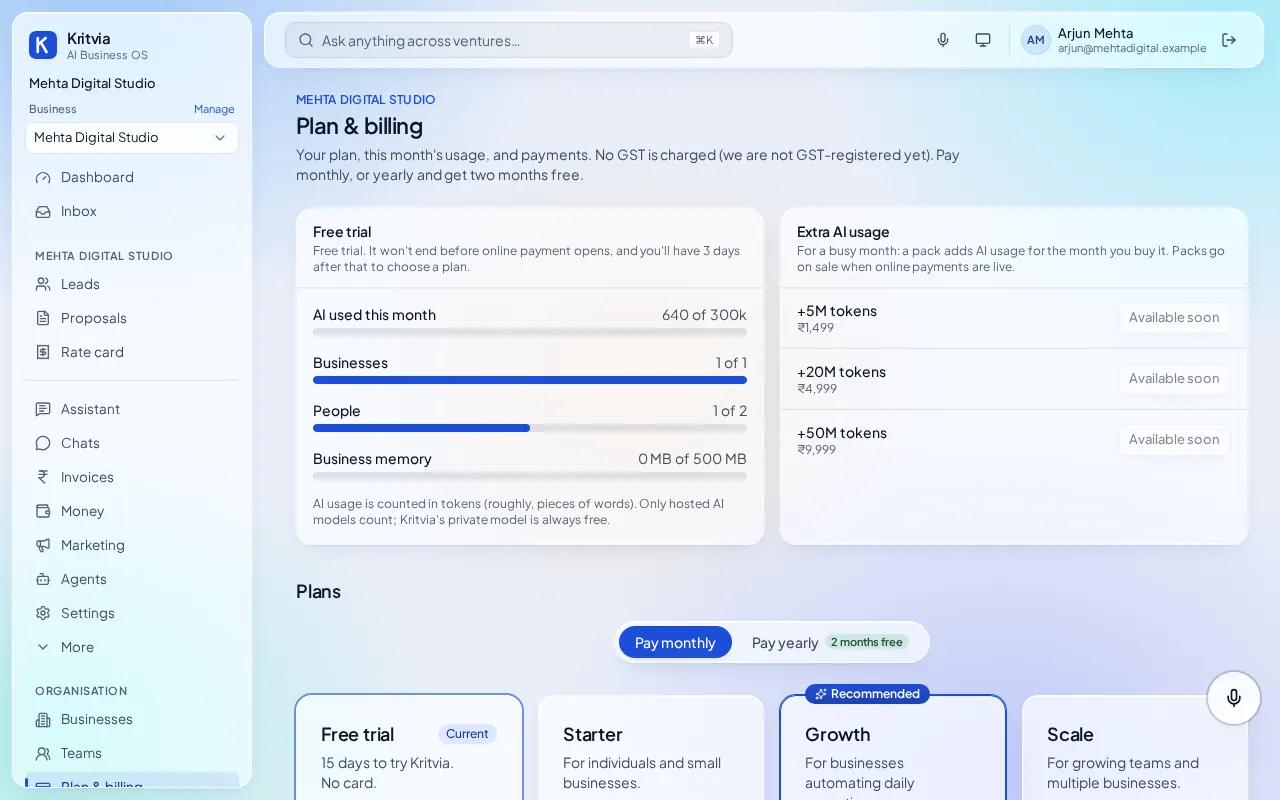
The trial is free for 15 days; to keep working after that, pick a plan under Plan & billing. Prices are the full amount: no GST is added.
| Plan | Monthly | Yearly (2 months free) | Businesses | People |
|---|---|---|---|---|
| Starter | ₹2,499 | ₹24,990 | 1 | 5 |
| Growth | ₹6,999 | ₹69,990 | 3 | 15 |
| Scale | ₹14,999 | ₹1,49,990 | 10 | 50 |
- Choose Pay monthly or Pay yearly and click your plan.
- Pay by UPI, card or netbanking in the Razorpay window. Your plan changes as soon as the payment goes through, and the invoice appears under Payments and invoices.
- Have a coupon, or a partner code from your CA or agency? Enter it before you pay.
If the trial ends without a plan, your account becomes read-only: you can still see, export and delete your data, and everything comes back when you pick a plan.
Problems and help
| Problem | What to do |
|---|---|
| The sign-in code didn't arrive | Check spam. Wait for the timer, then click Send again |
| "Google search isn't set up yet" | Type your phone, address, website and hours yourself |
| A draft is wrong | Click Reject and say what was wrong; the agent redrafts it |
| A price in a draft looks wrong | Fix it on your Rate card; drafts only quote prices that are there |
| A WhatsApp reply can't be sent | WhatsApp allows replies only within 24 hours of the customer's last message |
| A run says "trying again by itself" | Nothing to do: it retries on its own within a few minutes |
| Agents are doing too much by themselves | Click Pause on the Dashboard, or reply PAUSE from your linked WhatsApp or Telegram |
Still stuck? Open Help & contact in the left menu, or email [email protected] (opens in a new tab).